Introduction
Having trouble with an Xfinity modem that won’t power on is a common issue that can disrupt your day-to-day activities, from work tasks to leisure streaming. When your modem fails to start, it can be a significant hassle, but understanding the issue is the first step towards resolution. This guide will walk you through the necessary steps to diagnose and fix your modem issues effectively before reaching out for external support. With these troubleshooting strategies, you can ascertain whether the problem is a quick fix or if more extensive action is necessary.
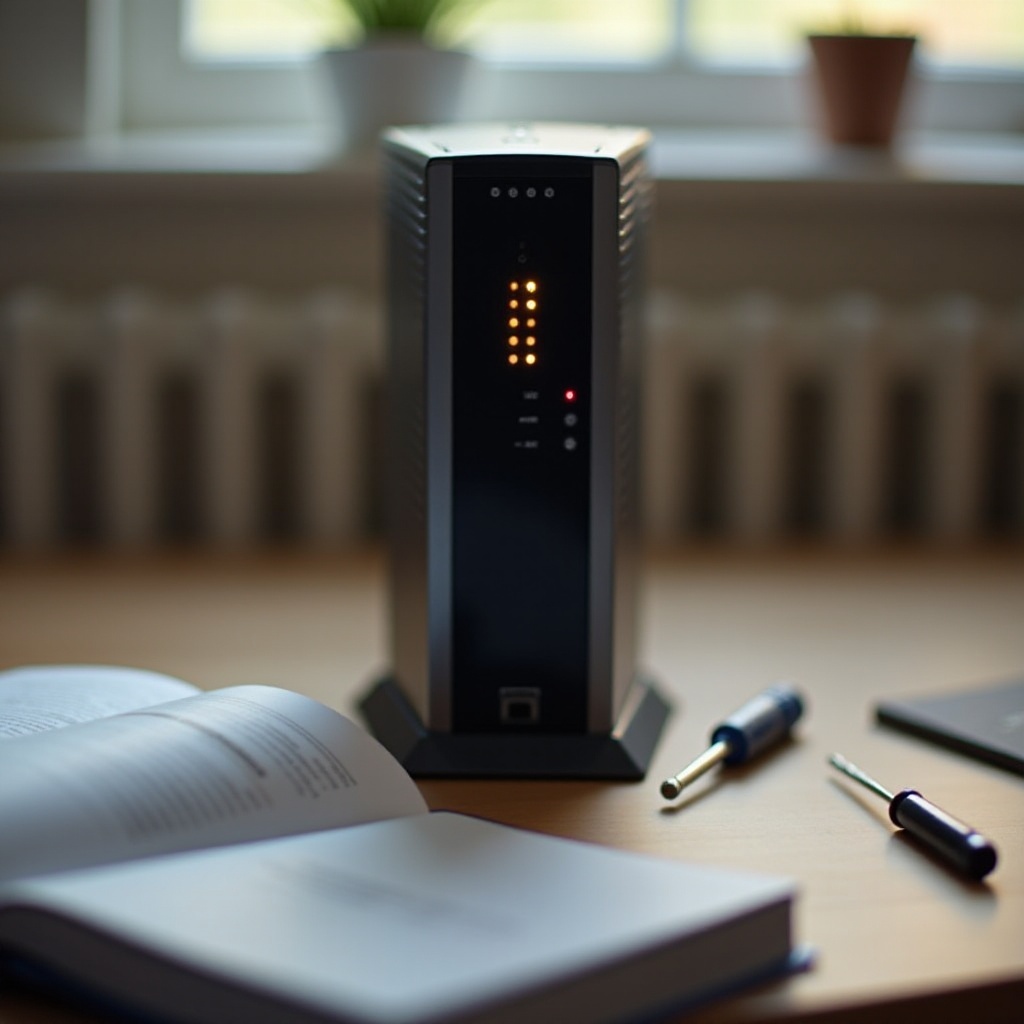
Initial Troubleshooting Steps
Starting with straightforward troubleshooting is key to efficiently solving any modem issue. These basic checks can quickly identify and rectify common problems.
-
Checking Power Connections: Ensure the power cable is firmly plugged into both the modem and the electrical socket. Loose connections are often a simple but overlooked cause of modems not turning on.
-
Testing with Another Power Outlet: Try plugging the modem into a different outlet to verify if the outlet is functional. Occasionally, the issue lies with the socket rather than the modem itself.
-
Inspecting Power Cord and Adapter: Check your power cord and adapter for visible wear and tear, such as breaks or bends. Replace if necessary to restore functionality.
Completing these initial steps can help unveil the core issue, allowing you to either fix it rapidly or determine that further measures are required.
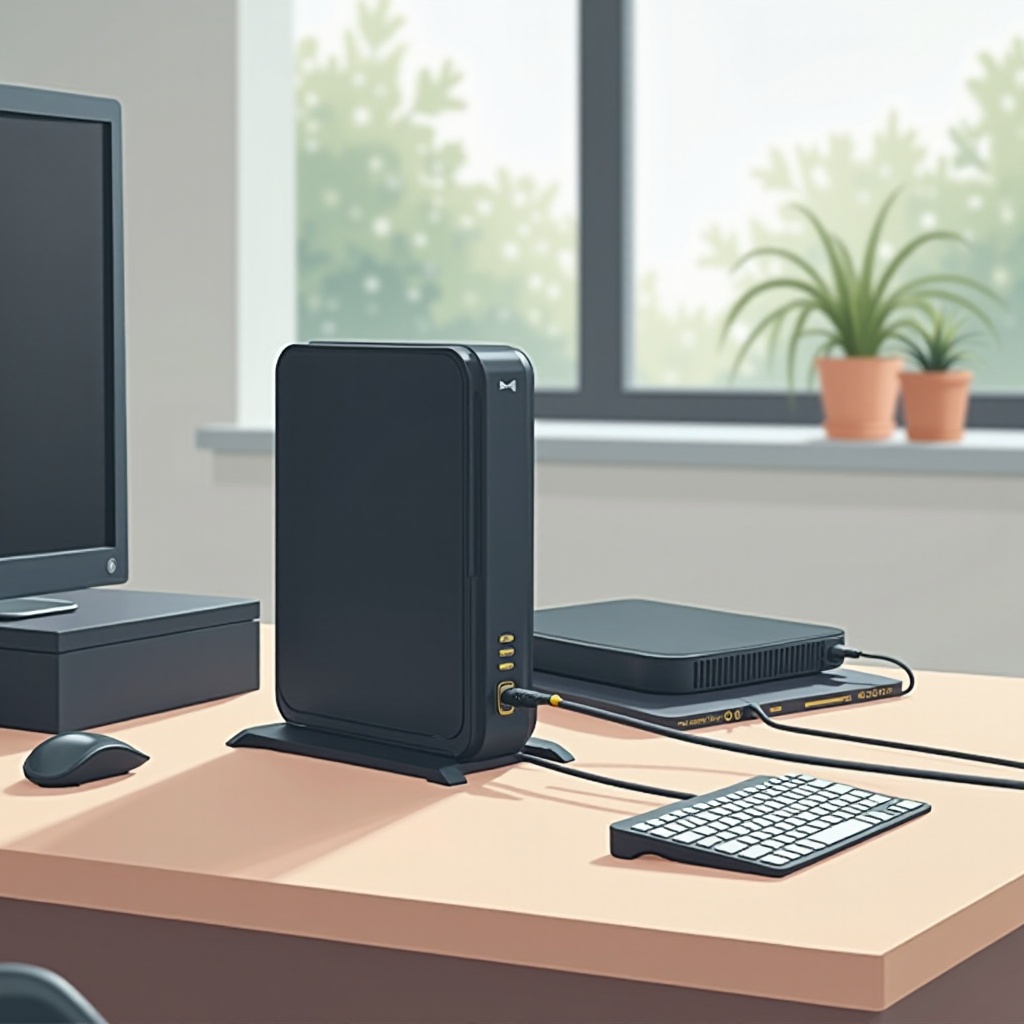
Restarting and Resetting Your Xfinity Modem
If the initial troubleshooting doesn’t resolve the problem, considering a restart or reset may be beneficial. These techniques can often rectify minor internal faults.
-
How to Safely Restart Your Modem: Disconnect the power cord from the outlet, wait for approximately 30 seconds, then reconnect it. This simple action can refresh the modem’s system and eliminate glitches.
-
Performing a Factory Reset Step-by-Step: Utilize a small object, like a paperclip, to press and hold the modem’s reset button for about 10 seconds. This procedure restores the default factory settings. Be prepared to re-enter necessary configuration details after a reset, ensuring you have this data readily available.
Through a combination of restarting or resetting, many minor issues can be resolved, clearing the path for normal modem operation.
Advanced Diagnostic Techniques
When simpler fixes prove inadequate, more intricate diagnostics may be necessary.
-
Checking for Overheating Problems: Confirm that the modem position allows for proper airflow to prevent overheating. If the modem feels excessively hot, it could indicate poor ventilation or internal issues.
-
Identifying and Addressing Faulty Hardware: Carefully open the modem’s case, if possible, to inspect for hardware damage. Exercise caution to avoid invalidating any warranties.
-
Analyzing Modem Indicator Lights: Pay attention to the modem’s lights. A complete lack of lights often points to power issues, whereas particular error signals require specific troubleshooting.
Employing these detailed diagnostics can illuminate whether the modem’s issues are internal or external, providing clarity as to the next steps.
Engaging with Xfinity Customer Support
If personal attempts to resolve the modem issue do not succeed, contacting Xfinity Customer Support should be your next step.
-
Information to Have Ready Before Calling: Prepare the modem’s model number, details of troubleshooting attempts, and any LED indicators displayed to streamline communication with support.
-
Steps to Communicate the Issue Clearly: Describe your concerns succinctly, noting any error occurrences or strange behaviors you observed during your troubleshooting.
-
What to Expect During a Technician Visit: If a technician is necessary, ensure easy access to the modem area. Understand that they may need to assess other network components.
Xfinity’s support team can assist with further diagnostics or confirm whether a modem replacement is essential.

Long-Term Solutions and Prevention Tips
Once immediate issues are solved, it’s wise to implement strategies that minimize future modem troubles.
-
Regular Maintenance Practices: Routinely dust off the modem and ensure it’s in a ventilated spot to maintain peak performance. Scheduled restarts can also prevent glitches.
-
Considerations for Using Backup Equipment: Utilize backup power systems like surge protectors to shield your modem from power irregularities, which can extend the device’s operational life.
By practicing ongoing modem maintenance, you protect yourself from recurrent issues, ensuring consistent and reliable internet access.
Conclusion
By systematically applying the steps detailed, you can comprehend and address the reasons why your Xfinity modem won’t power on. Covering everything from elementary connection checks to sophisticated diagnostics, the guide aims to restore functionality or highlight when professional assistance is paramount. Implementing preventive measures can help avert future modem concerns and sustain stable internet access.
Frequently Asked Questions
Why is my Xfinity modem’s power light off?
The power light may be off due to insufficient power, a defective cable, or internal issues. Checking connections or using another outlet might help identify the problem.
How often should I reset my Xfinity modem?
Resetting your modem monthly can help prevent common connectivity issues by eliminating minor glitches, but frequent resets may signify deeper problems that need addressing.
Can a power outage damage my Xfinity modem?
Yes, power outages or surges can damage modem components. Protective devices like surge protectors or UPS units can safeguard your modem from such risks, prolonging its lifespan.