Introduction
Facing the ‘WiFi is turned off’ message on your LG TV can be quite frustrating, especially when you’re looking forward to watching your favorite shows. Smart TVs depend on stable internet connections for streaming, accessing online apps, and other features. A disruption means missing out on the full smart experience. Let’s dive into practical steps to help you restore your connection quickly.
Understanding LG TV WiFi Settings
Before solving the issue, it’s essential to familiarize yourself with the network settings on your LG TV. These settings can typically be found in the menu under ‘Network Settings’. You’ll encounter options like network configuration type (wired or wireless), available networks, and network status. Understanding these elements empowers you to navigate through and adjust the settings if necessary, setting the stage for effective troubleshooting.
Why Your LG TV Says WiFi is Turned Off
Numerous factors could lead to your LG TV indicating that WiFi is turned off. Issues like software glitches, outdated firmware, or even changes in router settings can interfere with connectivity. Consider the environment surrounding your TV, as electronic devices can also impact the signal strength. By identifying whether the issue arises at startup or mid-use, you can better understand the cause and effectively troubleshoot.
Initial Troubleshooting Steps
- Reboot the TV and Router: Disconnect and unplug your TV and router for about one minute. Reconnect them and check the WiFi status.
- Verify WiFi Credentials: Double-check the password and try connecting another device to ensure the credentials are correct.
- Update Firmware: Go to ‘Settings’, select ‘Software Update’, and ensure your TV software is updated.
Executing these initial steps can address minor connectivity issues swiftly, setting the groundwork for more advanced troubleshooting if needed.
Advanced WiFi Troubleshooting
If basic fixes don’t resolve the problem, consider tackling more involved troubleshooting. Begin by resetting the LG TV’s network settings: access ‘Network’ and choose ‘Reset’. Doing so might clear settings that hinder connectivity. Check router frequencies too—switch between 2.4GHz and 5GHz bands to find the most stable connection. By taking these additional actions, you bolster the possibility of overcoming persistent issues.
Network Configuration Adjustments
Consider accessing your router’s settings. Ensure the SSID is not hidden to facilitate your TV’s connection. Adjust the channel to minimize congestion and avoid interferences, particularly if multiple networks exist nearby. Disable MAC address filtering if active, as it could block the TV’s connection. These simple adjustments can remarkably enhance network stability for your LG TV.
Alternative Connectivity Solutions
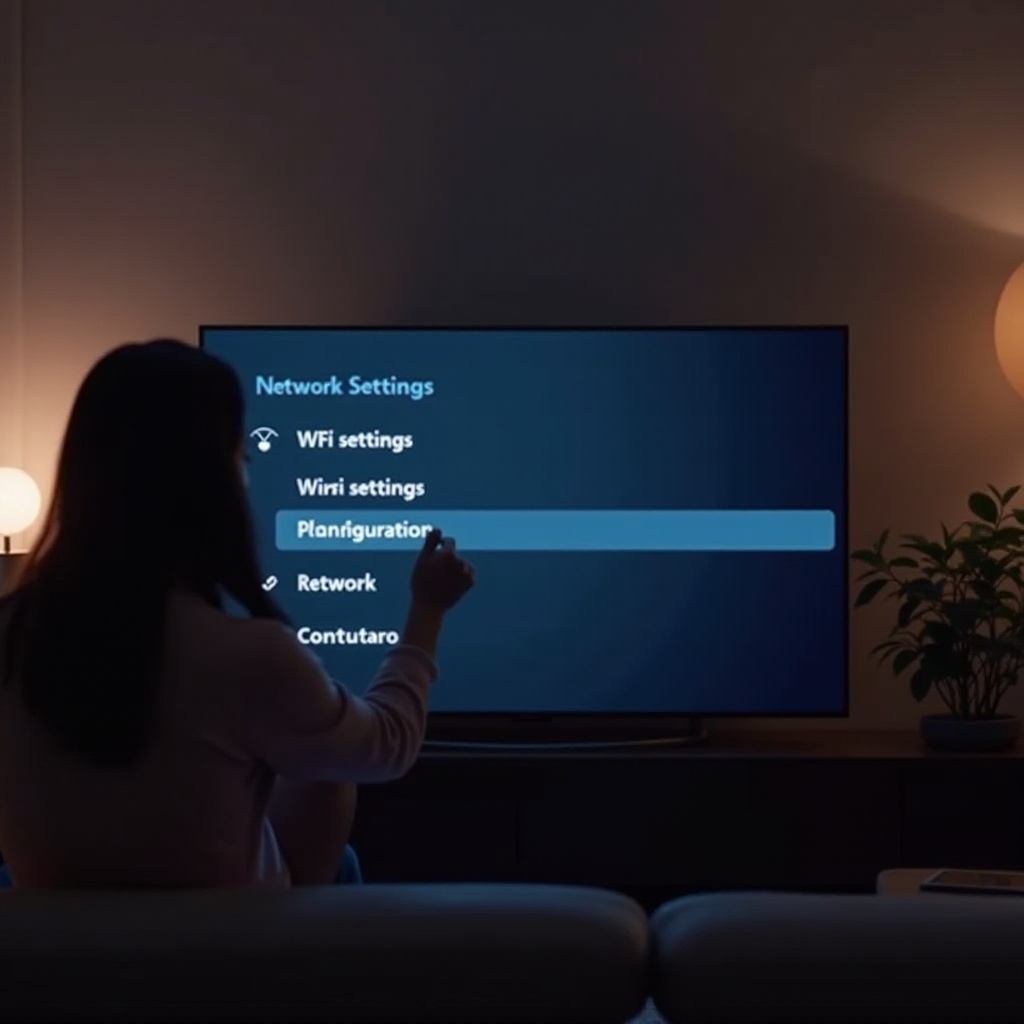
A reliable workaround to persistent WiFi issues is using a wired connection. Directly connecting your LG TV to the router with an Ethernet cable guarantees stability. Alternatively, deploying a WiFi extender strengthens signal reach, particularly beneficial if the TV is within a poor coverage area. Both options ensure consistent internet access and uninterrupted streaming.
Maintaining a Stable WiFi Connection
To avoid future WiFi problems, routine maintenance is vital. Regularly update your TV’s firmware and router software. Periodically check the network for interference or changes that may require a simple fix. If the router is old, consider an upgrade for improved performance. Ensure the router is placed centrally, away from potential interferences. Consistently applying these measures keeps your LG TV connection robust and reliable.
Conclusion
Solving ‘WiFi turned off’ issues with your LG TV involves understanding its settings and addressing disruptions actively. From basic reboots to alternative connectivity arrangements, the range of solutions ensures your TV seamlessly returns online. Persisting difficulties should be escalated to LG support for specialized assistance. Continual connectivity is vital for a full-fledged smart TV experience.
Frequently Asked Questions
Why does my LG TV keep disconnecting from WiFi?
LG TVs may disconnect due to firmware issues, incorrect network settings, or weak signals. Verify settings and try a wired connection for stability.
How do I reset network settings on my LG TV?
Navigate to ‘Settings’, then ‘Network’, and select ‘Reset’ to restore default settings. This may resolve various connectivity issues.
Will using an Ethernet cable improve my LG TV’s connection?
Yes, an Ethernet cable offers a direct, stable link to the router, generally more reliable than WiFi, especially in areas with substantial interference.