Introduction
iPhone users rely heavily on notifications to stay informed. Missing alerts can lead to missed messages or security notices, especially when using apps like Ring that are crucial for home security. If your Ring notifications are not working on your iPhone, it can be frustrating and concerning. This detailed guide will help you understand the possible reasons behind this issue and provide you with effective solutions to ensure you never miss an important notification again.
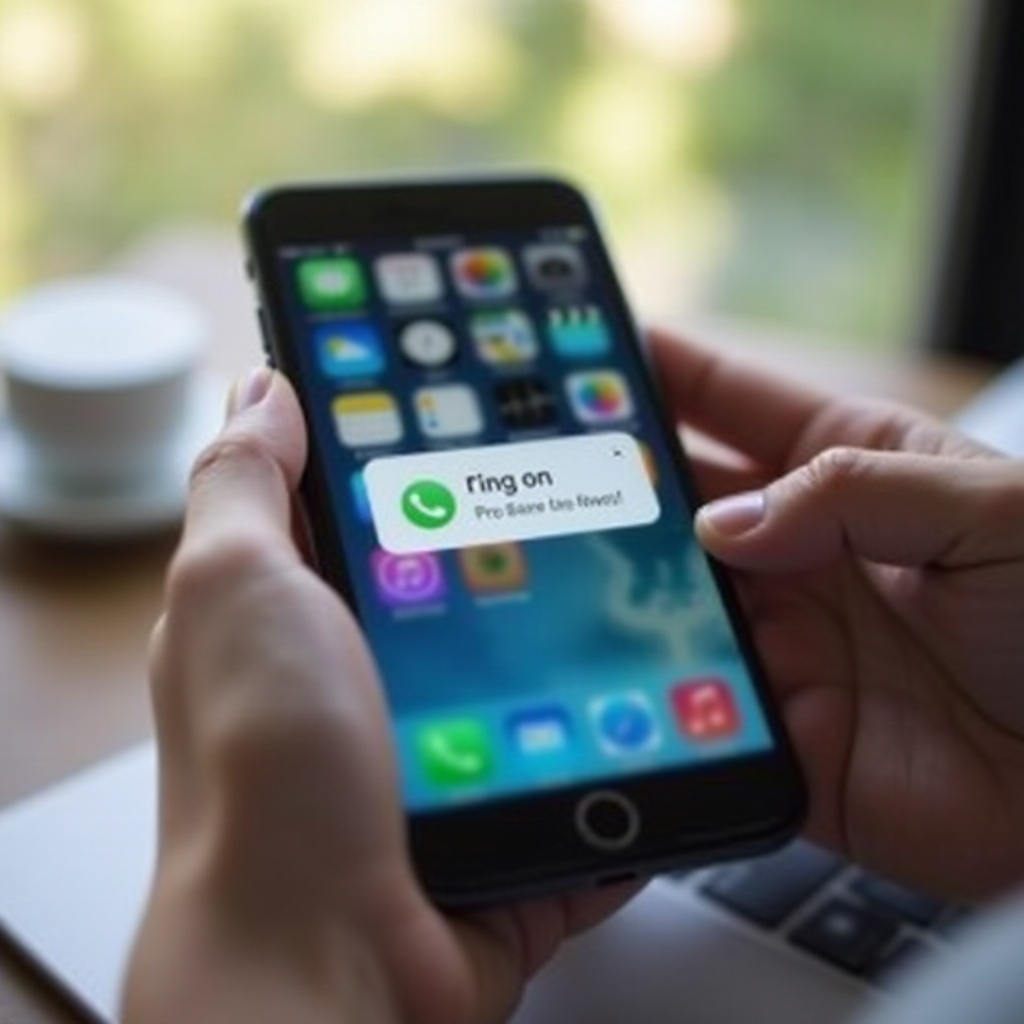
Understanding Ring Notifications on iPhone
Ring notifications are designed to alert you whenever there’s activity captured by your Ring devices. Understanding why they might not work involves knowing how these notifications are generated and delivered to your device.
When notifications fail, it often results from software glitches, misconfigurations, or connectivity issues. Unaddressed, this problem can lead to decreased awareness of your home’s security status. Recognizing these signs is crucial for a seamless experience with your Ring devices.
Basic Troubleshooting Steps
Start by ensuring that your iPhone settings support notification alerts:
- Enable Notifications:
- Open the ‘Settings’ app.
- Tap on ‘Notifications’ and scroll to the ‘Ring’ app.
-
Ensure ‘Allow Notifications’ is toggled on.
-
Check Silent Mode and Volume Settings:
- Ensure the silent switch (above the volume buttons) is off.
-
Use the volume buttons to set an adequate sound level for alerts.
-
Verify Do Not Disturb Status:
- Open ‘Settings,’ then tap ‘Focus’ and ‘Do Not Disturb.
- Make sure ‘Do Not Disturb’ is off during times you expect notifications.
Addressing these basic settings might resolve issues without the need for more complex solutions. However, if they persist, further steps are needed.
Advanced Software Settings and Updates
If the basic settings check did not resolve the issue, consider looking into more advanced settings.
- Update Your iOS:
- Go to ‘Settings’ > ‘General’ > ‘Software Update.
-
Download and install any available updates.
-
Reset Notification Settings:
- Navigate to ‘Settings’ > ‘General’ > ‘Transfer or Reset iPhone’ > ‘Reset’ > ‘Reset All Settings.
-
Note: This will reset customized settings but preserve your data.
-
Check Ring App Permissions:
- Open ‘Settings’ > ‘Ring.
- Ensure all necessary toggles for notifications are activated.
Keeping your iOS updated and notification settings optimized are crucial steps for ensuring consistent Ring alerts. Connectivity is another factor that might interfere, which brings us to the next section.
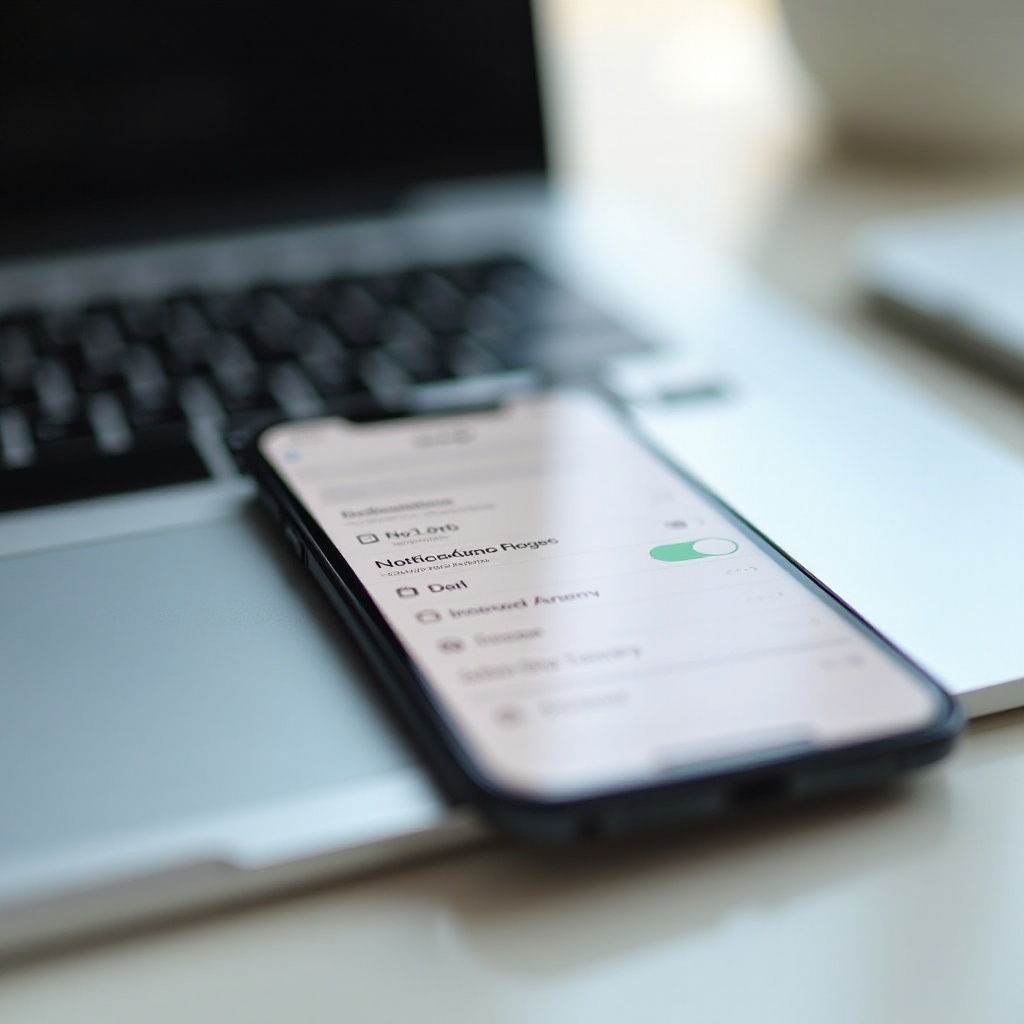
Connectivity and Network Solutions
Network issues often disrupt how your device communicates with Ring servers. Ensuring stable connectivity is essential.
- Check Wi-Fi and Cellular Data:
- Make sure your iPhone is connected to a stable Wi-Fi network.
-
Confirm cellular data is active if Wi-Fi is unavailable. Go to ‘Settings’ > ‘Cellular’ and ensure it’s on for the Ring app.
-
Try the Airplane Mode Trick:
- Swipe down from the top right to access ‘Control Center.
- Toggle ‘Airplane Mode’ on, wait a few seconds, and turn it off again to refresh connections.
Consistent network connectivity helps ensure your notifications are delivered promptly. If issues persist despite having a stable connection, the app itself might have specific settings that need attention.
App-Specific Issues and Solutions
The Ring app’s settings are just as crucial as your device’s settings.
- Reinstall the Ring App:
- Tap and hold the Ring app until options appear, and select ‘Remove App.
-
Visit the App Store to download and reinstall the Ring app.
-
Explore App-Specific Notification Settings:
- Open the Ring app, go to ‘App Settings,’ and ensure notifications are enabled and customized as needed.
Solutions specific to the app often resolve any remaining glitches. If following all these steps, you still face issues, advanced troubleshooting might be necessary.
Final Resort: Advanced Troubleshooting
Consider these options only if previous steps fail to solve the problem:
- Reset Network Settings:
-
Go to ‘Settings’ > ‘General’ > ‘Transfer or Reset iPhone’ > ‘Reset’ > ‘Reset Network Settings.
-
Factory Reset as a Last Option:
- If all else fails and after backing up your data, you can opt for a factory reset via ‘Settings’ > ‘General’ > ‘Transfer or Reset iPhone’ > ‘Erase All Content and Settings.
These advanced steps should be considered the last resort. Make sure all other options are exhausted before proceeding, especially methods that erase data.
Conclusion
Fixing Ring notifications on an iPhone requires checking settings, securing connections, and sometimes reinstalling the app. Address each section methodically to ensure all bases are covered. As always, maintaining device and app software up to date prevents many issues before they begin.
Frequently Asked Questions
Why are my Ring notifications delayed on my iPhone?
Notifications may be delayed due to poor network connections or background app refresh issues. Ensure a stable internet connection and allow the app to refresh in the background.
How can I ensure my Ring app runs smoothly all the time?
Regularly update your app and iOS, adjust device settings properly, and ensure consistent network connectivity for seamless functionality.
Can low battery affect Ring notifications on my iPhone?
Yes, low power mode can limit notifications. Make sure your device has sufficient battery and avoid enabling power-saving options frequently.