Introduction
Are you facing issues with your left Joy-Con not working when attached to your Nintendo Switch? This comprehensive guide will help you diagnose and fix connection problems quickly and effectively. Understanding the symptoms and underlying causes will empower you to address these common issues with confidence. Let’s delve into the steps to restore your Joy-Con’s functionality and get back to gaming.
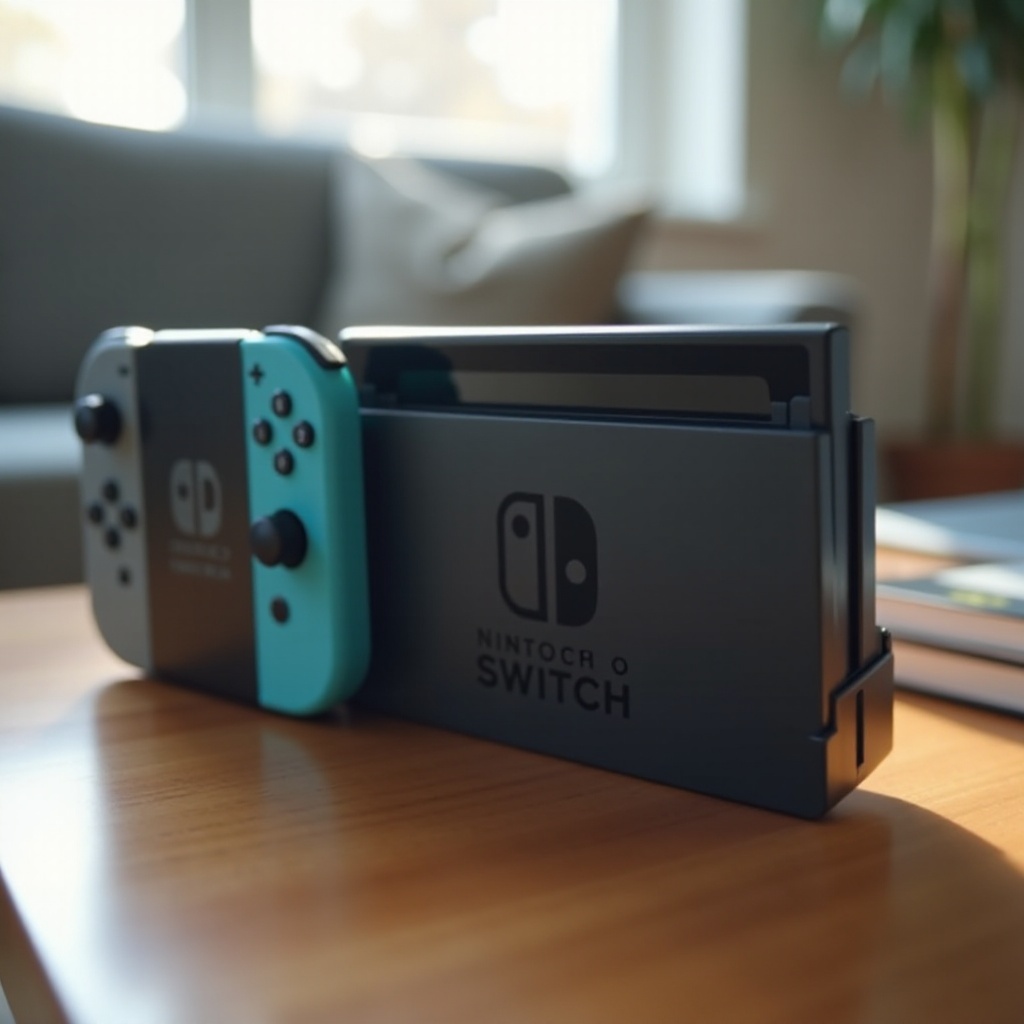
Understanding the Left Joy-Con Issue
A misbehaving left Joy-Con might show several symptoms, such as failing to respond when attached or consistently disconnecting during games. Recognizing these symptoms is crucial to finding a resolution.
To pinpoint the problem, consider potential causes ranging from dirt in the connector to battery-related issues. Assess the symptoms to determine the most likely cause and prepare for troubleshooting.
Common Symptoms of the Problem
- Lack of response from the Joy-Con when attached.
- Frequent disconnections, especially during gaming.
- Noticeable input delays during play.
Potential Causes for Malfunction
Several factors might cause your left Joy-Con to malfunction:
– Dirty connectors: Dust or debris may be obstructing the connectors, hindering the attachment.
– Battery issues: A depleted or faulty battery can prevent proper functionality.
– Software glitches: Outdated software can lead to compatibility issues affecting the Joy-Con.
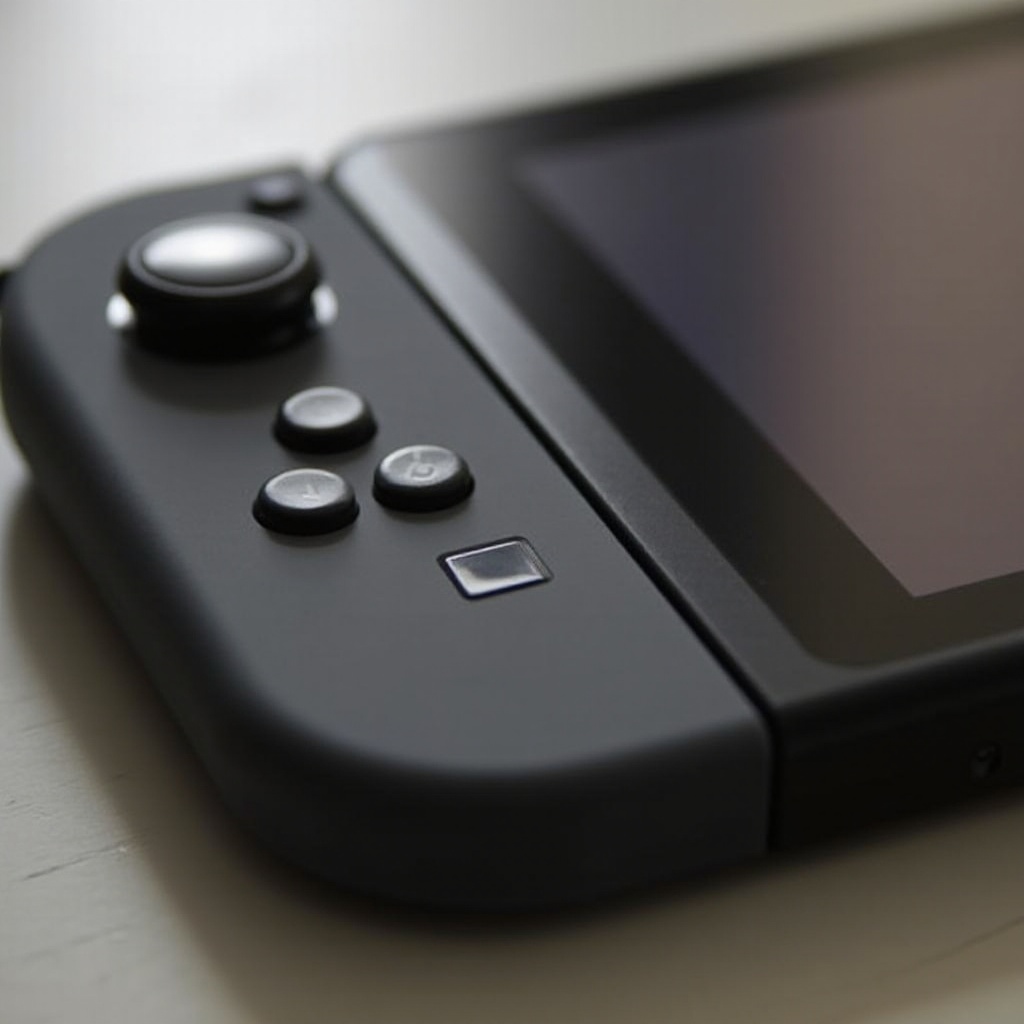
Basic Troubleshooting Steps
Start with simple troubleshooting steps that might rectify the problem without requiring further intervention.
Ensuring Proper Attachment
Ensure that the Joy-Con is correctly attached:
– Slide it down the rail on the Switch until it clicks securely.
– Inspect the connection points for cleanliness and alignment.
Checking for System Updates
Update your console’s software to fix potential glitches:
1. Open System Settings on your Switch.
2. Navigate to System and select System Update.
3. Follow the instructions to update the system.
Battery Level Verification
Verify the Joy-Con’s battery level to rule out power-related issues:
– Detach the Joy-Con from the console and check the battery indicator from the Controllers menu.
– Fully charge the Joy-Con if it’s low on power.
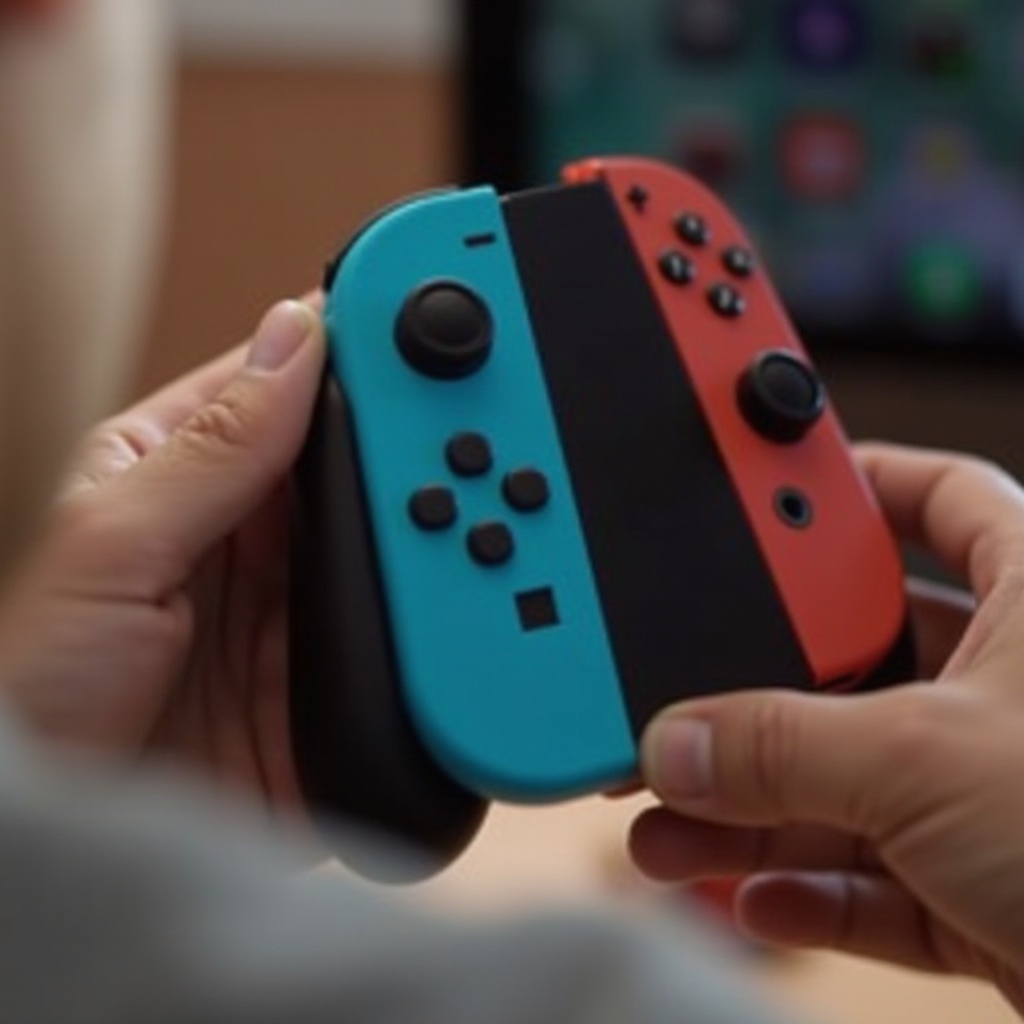
Advanced Solutions
If basic troubleshooting doesn’t solve the problem, consider these advanced fixes. These may involve handling the actual hardware or resetting connections.
Cleaning the Joy-Con and Console Rail
Ensure the connectors are clean for a proper connection:
– Use a microfiber cloth to gently wipe the connectors on both the Joy-Con and the Switch.
– Consider using a small amount of rubbing alcohol if dirt persists.
Resetting the Joy-Con Connection
Resetting the connection can sometimes resolve persistent issues:
1. Press the small button on the back of the Joy-Con until the lights flash.
2. Reattach the Joy-Con to the Switch to establish a new connection.
Replacing the Joy-Con Battery
If battery issues persist after charging, replacing might be necessary:
– Obtain a replacement battery compatible with your model.
– Use a precision screwdriver to open the Joy-Con and replace the battery carefully.
Preventative Measures for Joy-Con Health
Maintaining your Joy-Con’s health is crucial for minimizing future connectivity issues. Regular care can extend their lifespan significantly.
Regular Maintenance Tips
Maintain the Joy-Con’s optimal performance:
– Clean every month with a microfiber cloth.
– Keep your Switch in a dust-free area to avoid buildup.
Safe Storage and Handling Practices
Proper storage and handling can prevent physical and functional damage:
– Use a protective case for your Switch and Joy-Cons when not in use.
– Attach and detach the Joy-Con carefully to prevent damage.
When to Contact Nintendo Support
If fixing the Joy-Con yourself doesn’t help, it may be time to seek professional support to diagnose and repair deeper issues.
Recognizing Hardware Failures
Specialists should handle hardware failures:
– Persistent non-responsiveness despite multiple attempts at repair could indicate an internal failure.
Exploring Warranty and Repair Options
Reach out to Nintendo for repair options based on your warranty status:
– Visit the official Nintendo Support page for guidance on repair and warranty checks.
– Consider sending your Joy-Con for professional repair if it is still under warranty.
Conclusion
With the right approach, solving your left Joy-Con connectivity issues can be straightforward. This guide provides you with the necessary steps to tackle the problem, ensuring a smooth gaming experience. Whether through basic maintenance or more complex troubleshooting, keeping your Joy-Con in good health is within your reach. For unresolved issues, remember professional support is available.
Frequently Asked Questions
Why does my left Joy-Con keep disconnecting?
Connection issues can often be fixed by ensuring a tight fit and cleaning the connectors. Software updates can also help resolve persistent issues.
How can I test if my Joy-Con is faulty?
Try the calibration test available in the Switch’s settings or use the Joy-Con with another device to identify if the issue is with the controller or the console.
Is there a way to prevent future Joy-Con connectivity issues?
Regular cleaning, software updates, and careful handling significantly reduce the likelihood of future connectivity problems with Joy-Cons.