Introduction
Efficient PDF management is critical for students, professionals, and tech enthusiasts. If you’re equipped with an iPad, understanding its PDF annotation capabilities can significantly enhance productivity. In this guide, we explore top apps and best practices for transforming your iPad into a robust tool for digital document management.
Why Choose the iPad for PDF Annotation?
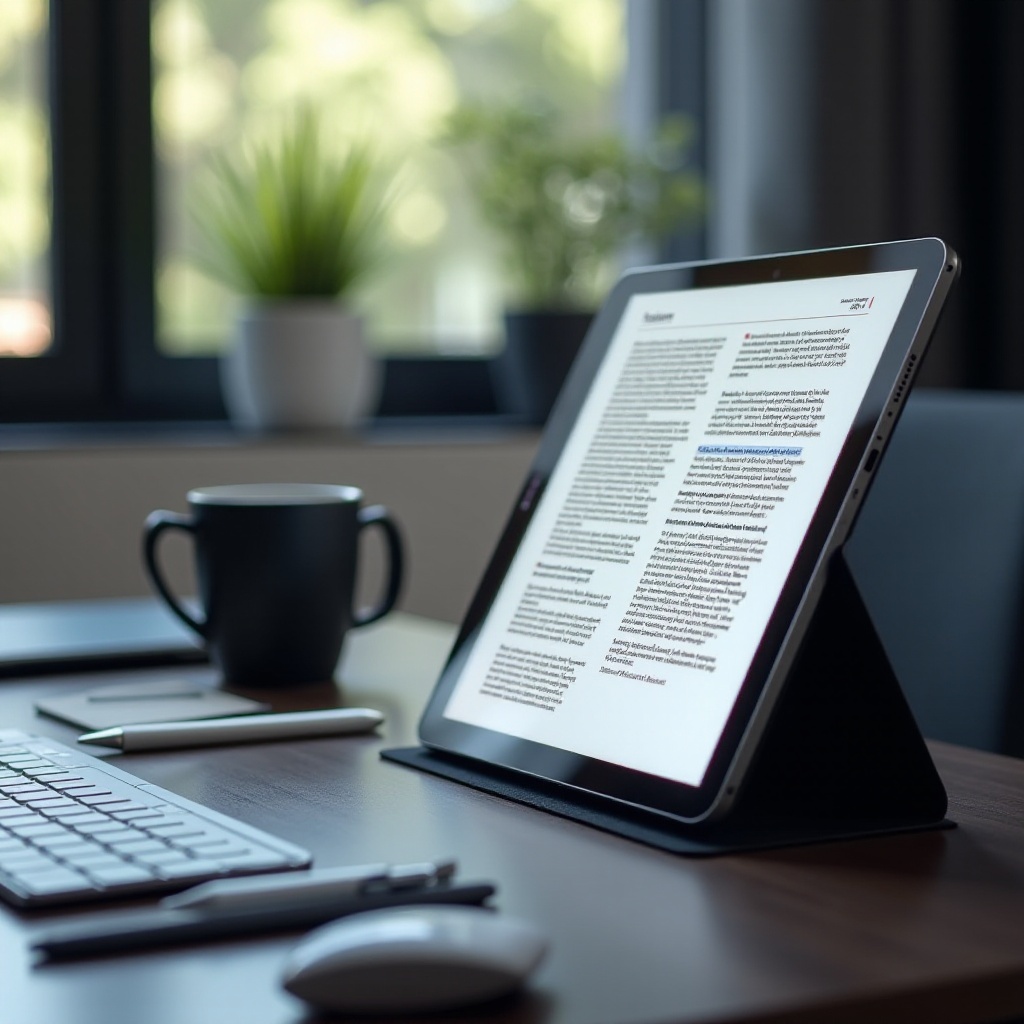
The iPad excels at PDF annotation due to its blend of power, portability, and precision. With continuous upgrades in iPadOS, users enjoy multitasking capabilities and vibrant Retina displays ensuring text clarity. The iPad’s touch-sensitive interface makes it easy to highlight text or jot down notes with an Apple Pencil, ensuring pinpoint accuracy.
Compared to other devices, the iPad offers a more integrated ecosystem. Apps are optimized for iPadOS, providing excellent reliability and performance. Professionals from various fields, whether architects sketching designs or educators reviewing student work, prefer the iPad for its efficiency and performance in handling PDFs. This sets the stage for exploring which applications enhance the user experience further.
Best Apps for Annotating PDFs on iPad
Choosing the right app for PDF annotation can redefine your workflow. Here are top recommendations:
-
GoodNotes: Key Features and Benefits
GoodNotes stands out for its handwriting recognition feature, allowing users to convert handwritten notes into typed text, enhancing searchability. Its intuitive interface enables smooth navigation through multiple documents, making it favored among professionals managing various projects simultaneously. -
Notability: Pros and Cons
Notability offers an excellent mix of note-taking and PDF annotation features. One notable feature is its audio recording capability, which allows users to annotate while recording lectures or meetings in real time. Though powerful, some users find its interface less customizable compared to other apps. -
PDF Expert: An In-depth Look
PDF Expert is noted for its robust features tailored specifically for PDF manipulation. It offers options for merging documents and making edits, serving as a comprehensive PDF solution. It may have a steeper learning curve, ideal for those looking for advanced PDF functionalities.
These applications showcase the iPad’s versatility, offering features designed to meet diverse user needs. From converting handwritten notes to extensive editing tools, these apps provide a complete solution for varied PDF annotation tasks.
Getting Started: Setting Up Your iPad for PDF Annotation
Preparation is key before tapping into your iPad’s annotation capabilities. Here’s a setup guide:
-
Update Your iPad: Ensure your device is running the latest iPadOS to enjoy enhanced security and app compatibility, ensuring access to the latest features and tools.
-
Prepare Your Accessories: An Apple Pencil greatly enhances annotation accuracy, seamless writing, and sketching. Other stylus options might work if compatible with your model.
-
Configure Cloud Settings: Use iCloud to store and synchronize documents across devices, ensuring easy access and continuity.
This setup creates a strong foundation, facilitating a smoother and more efficient PDF management experience.
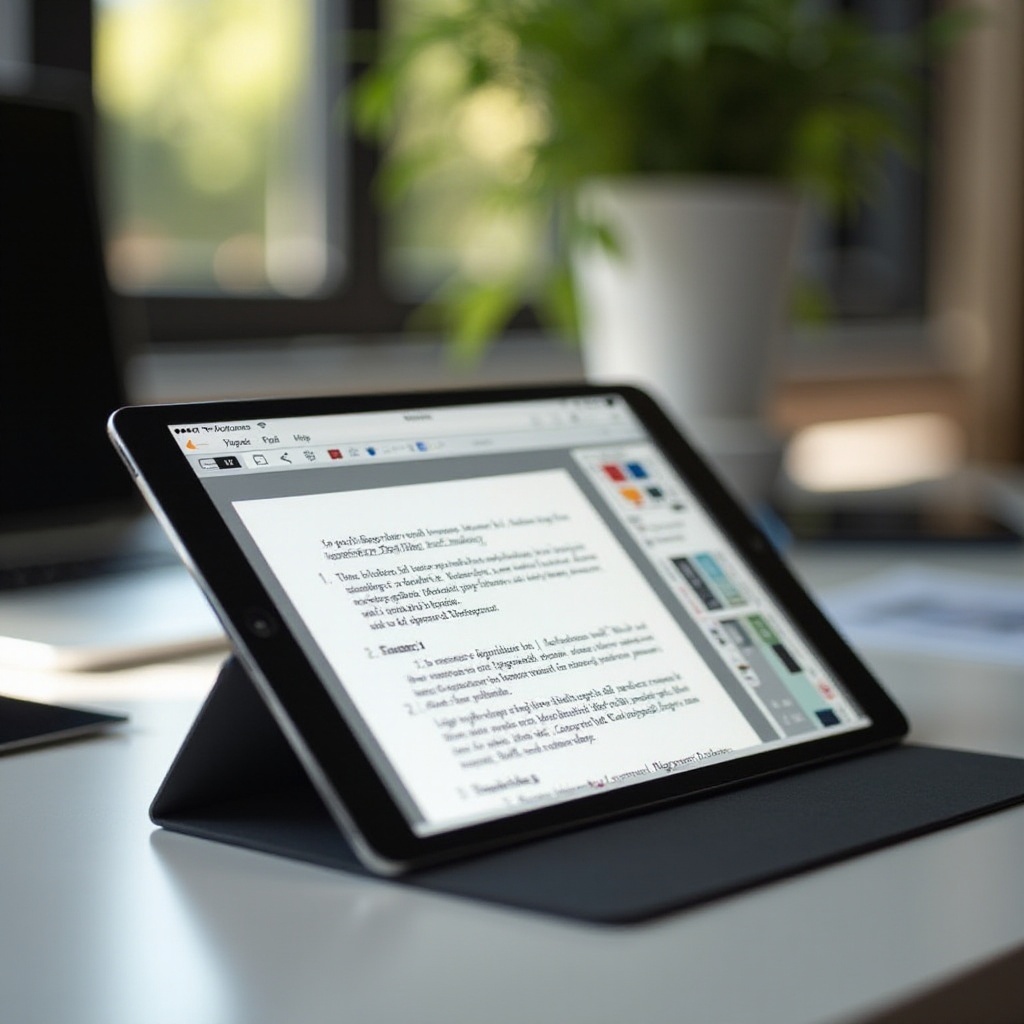
How to Annotate PDFs on Your iPad: A Step-by-Step Guide
With your iPad equipped, follow these steps for effective annotation:
- Importing and Opening PDFs:
- Open your chosen app and import the PDF via iCloud, email, or direct download.
-
Navigate through app-specific methods to open documents from file storage.
-
Basic Annotation Techniques (Highlighting, Underlining):
- Use the highlight tool to mark important text.
-
Underline sections to add emphasis, enhancing note clarity.
-
Advanced Annotations (Adding Notes, Drawing):
- Choose the text box option to add annotations where needed.
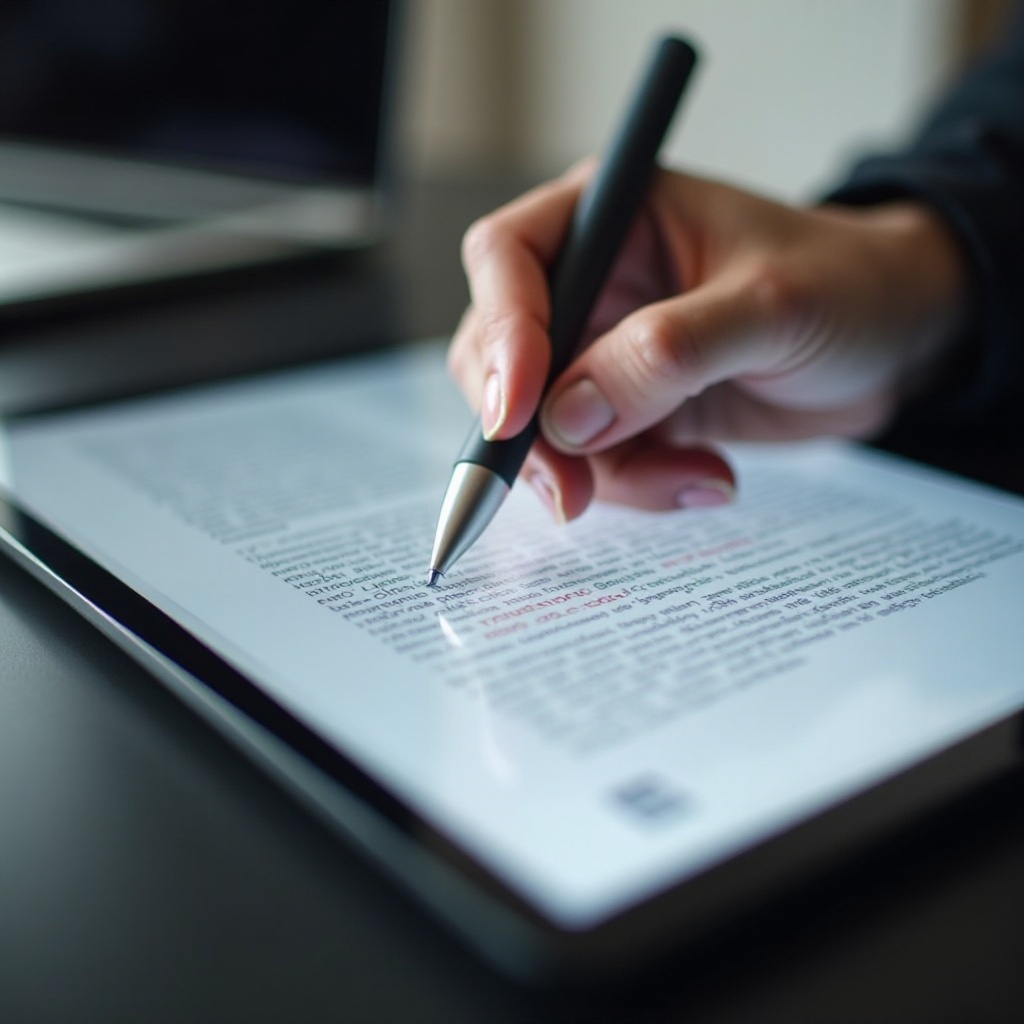
- Utilize the drawing tool for sketches and freehand notes, especially effective with an Apple Pencil.
Following these steps leverages the iPad’s capabilities, streamlining your PDF annotation tasks with efficiency and speed.
Tips and Tricks for Effective Annotation
Elevate your annotation workflow with these strategies:
-
Organizing Annotations Efficiently: Utilize folders and tagging within apps to categorize documents, making retrieval seamless.
-
Syncing Across Devices: Enable cloud sync options like iCloud or Dropbox, ensuring your annotations remain updated and accessible across devices.
Incorporating these methods will ensure a productive and organized workflow, simplifying document management.
Overcoming Common Challenges
Despite the robust tools, challenges may arise. Here’s how to tackle them:
-
Handling Large PDF Files: Optimize storage by compressing PDFs and utilizing cloud services to free device space.
-
Troubleshooting App Compatibility Issues: Ensure all apps are updated to the latest version to enhance compatibility and minimize bugs.
By preparing for these common issues, you can maintain a smooth annotation experience with fewer disruptions.
Conclusion
The iPad is a powerful device for managing and annotating PDFs efficiently. By selecting the appropriate app and mastering both basic and advanced techniques, your productivity can soar. Experiment with different apps to find features that best suit your workflow, and transform your PDF annotation experience on the iPad.
Frequently Asked Questions
What is the best app for annotating PDFs on an iPad?
GoodNotes, Notability, and PDF Expert offer unique features, each tailored to different user needs, making them top options.
Can I use an Apple Pencil for PDF annotation on the iPad?
Yes, the Apple Pencil enhances the annotation experience, allowing for seamless writing and drawing on the iPad.
How do I sync my annotated PDFs across devices?
Utilize cloud services like iCloud or Dropbox to keep your documents synchronized across multiple devices for continuity and access.